Your Whole Schedule in One Place: Client Bookings Now Appear in Apple Calendar Automatically

Open your calendar right now and you’ll see your life. The dentist on Tuesday. The flight on Friday. Your kid’s recital. Dinner with a friend. Pick up the parcel.
Everything except the thing that pays for all of it — your clients.
Those have always lived somewhere else. Which means the calendar you check twenty times a day has never actually shown you your day. Now it does. Every booking you make in My Clients appears in Apple Calendar on its own, next to everything else you already keep there.
One Screen, Your Actual Day
Here’s what a Thursday looks like once both halves are in the same place:
- 09:00 — dentist
- 12:00 — pick up supplies
- 15:30–18:00 — Alex, tattoo session
- 19:30 — dinner with M.
Two of those you typed in yourself. The other two put themselves there the moment you booked them.
That’s the whole idea. Not a second app to check, not a schedule you assemble in your head each morning — one list, in the app you already open by reflex, that finally contains your work as well as your life.
The point isn’t that you get reminders. It’s that “what does my day look like?” becomes a question with one answer instead of two.
Booked Once, Everywhere — Automatically
The word doing the work here is automatically. You don’t copy anything across, and you don’t keep two calendars in step by hand.
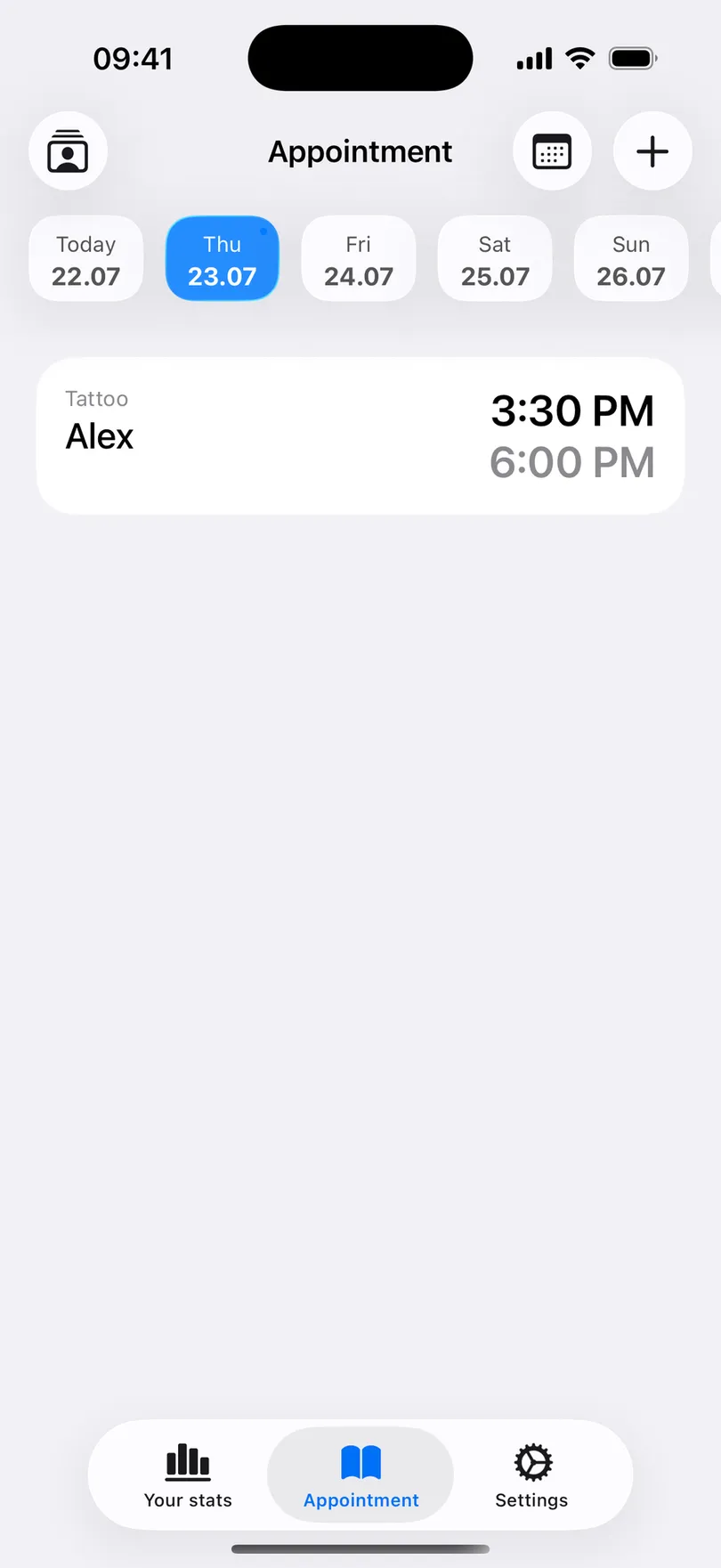
Here’s a booking as you create it in the app — Alex, tattoo, 3:30 PM to 6:00 PM:
And here it is seconds later in Apple Calendar, sitting in the same week as the dentist and the dinner:
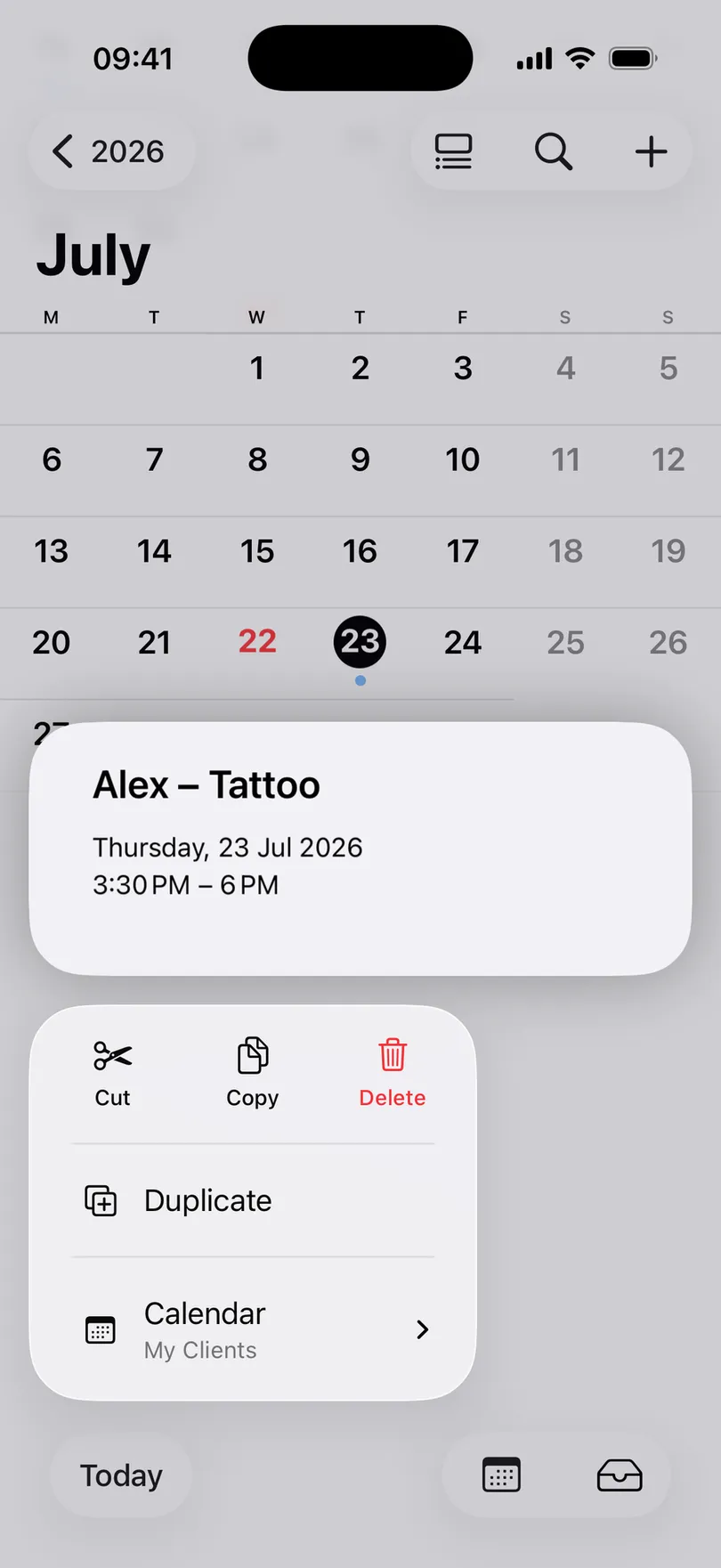
Everything you’d want carries across:
- The event is titled
Alex – Tattoo— client and service, readable straight from month view - It spans the real duration — 3:30 to 6:00, so the time is genuinely blocked, not marked with a dot
- It lands in its own calendar named
My Clients— alongside your personal events, never mixed into them - It moves when the booking moves — change the time in the app and the event follows
- New bookings keep arriving — set it up once and forget it exists
No export, no calendar link to subscribe to, no connector service in the middle.
Rita Stopped Keeping Two Schedules in Her Head
Rita tattoos out of a small private studio. Sessions run two to four hours, she charges around $150 an hour, and she’s booked six weeks out.
She was never disorganised. Her clients, deposits and session lengths were all recorded properly. The work was in merging them: every morning she’d check the booking app, then check her own calendar, and hold the combined picture in her head until bedtime.
Mostly that worked. Occasionally it didn’t — and last year five clients had to be moved because something personal was already in that slot. Two of those hours never refilled, and one client midway through a half-sleeve quietly finished it somewhere else.
“It wasn’t the tattooing. I moved his session twice, and he decided I wasn’t someone you could plan around. That was a $2,400 project.” — Rita, tattoo artist
Now she opens one calendar in the morning and the merging is already done.
Your Schedule Follows You Everywhere
Because the bookings are real calendar events, they show up wherever your calendar already shows up:
- Lock screen and widgets — tomorrow’s clients without unlocking the phone
- Apple Watch — your next session on your wrist, hands busy, mid-appointment
- Mac and iPad — plan the week on a big screen, work from your phone
- Siri — “what’s on Thursday?” now includes clients as well as errands
- CarPlay — your next appointment on the drive in
You didn’t gain another place to check your schedule. Your schedule arrived in all the places you were already checking.
Work Keeps Its Own Calendar
Your bookings don’t get poured into your personal calendar. They arrive in a dedicated one called My Clients, which keeps you in control of them:
- Switch it off in one tap — hide work entirely on a day off, deleting nothing
- Give it a colour — work and life separate at a glance
- It syncs through your own Apple Account — the events sit in the same iCloud as your personal calendar
- Hide it before you hand someone your phone — client names stay yours
Worth being straight about one thing: the sync runs one way, from the app into the calendar. The app stays in charge. Drag an event around inside Apple Calendar and the underlying booking won’t change, so keep editing in the app and treat the calendar as the place you look.
That’s deliberate. A booking carries the client’s history, deposit, notes and income with it — editing it in the app is what keeps all of that attached.
Rita’s Thursday — Before and After
Before — two schedules, merged by hand:
- Booking app in the morning, personal calendar after, the combined day held in her head
- “Let me check and get back to you” before agreeing to anything
- Five clients moved last year because something was already in the slot
- $900 of hours that never refilled, plus one half-sleeve finished elsewhere
After — one calendar with everything in it:
- Clients, dentist, flight and dinner all on the same screen, in order
- Bookings arrive by themselves — nothing entered twice
- Answers “are you free Thursday?” from her Watch, in seconds
- No reschedules from schedule clashes since she turned it on
“My week is finally one week. I stopped assembling it every morning.” — Rita
Who Gets the Most Out of This
- Long appointments — tattoo artists, lash techs, massage therapists: your day is a few big blocks, and you need to see them against everything else
- A busy life outside work — kids, study, a second job, a partner who plans things
- Multi-device workers — you plan on a Mac or iPad and work from your phone
- Apple Watch wearers — hands-on jobs where pulling out a phone mid-service isn’t realistic
- Anyone asked “are you free?” in person — and who’d rather answer now than look it up later
How to Turn It On in Under a Minute
- Open Settings in My Clients — the gear icon in the bottom bar
- Turn on Apple Calendar sync
- Allow calendar access when iOS asks — this is what lets the app create events
- Open Apple Calendar — a calendar named My Clients is already there
- Give it a colour you’ll recognise, and you’re done
Your existing bookings appear straight away, and everything you book from then on arrives on its own.
Conclusion
Managing your schedule shouldn’t mean checking two places and doing the merge yourself.
- Your bookings and your personal plans share one calendar — the whole day in one list
- Events arrive automatically — book once in the app, nothing to copy or re-enter
- Your schedule reaches your Watch, Mac, iPad, Siri and lock screen without opening an app
- Work sits in its own calendar you can colour, hide, or switch off
- Clashes become obvious while you’re booking, instead of three days later
Stop assembling your day from two different apps. Turn on Apple Calendar sync in My Clients and keep your whole schedule — clients and everything else — in one place. Free, no sign-up required.
You might also find useful
Start organizing your clients today