Where Is It? Appointments Now Carry the Address, One Tap from the Map

“We really need to know where we are going.”
That was a mobile business owner on Square’s community forum in September 2020, asking for a maps button in their appointments app. Their bookings showed the street but not the suburb. The moderator replied that there were no plans for one.
Anyone who works at the client’s place knows the request. The booking says Tuesday, 10:00, Marie, manicure. Where Marie lives is somewhere else: three weeks up a chat thread, in a screenshot, or in your head. As of version 1.9.6 on iPhone, My Clients keeps the place on the appointment itself.
Where does the address live until the day of the visit?
Ask a mobile nail tech, hairdresser or massage therapist, and the answer is usually one of these:
- In the chat. The client sent it when she booked, along with forty messages about colours. You scroll for it in the car.
- In the notes field, typed between “allergic to acetone” and “pays cash”, where nothing can open it in a map.
- In the phone’s contacts, on a card you made just so the address had somewhere to go.
- In your head, which works until you have two clients on the same street.
None of these takes long once. The trouble is that it happens before every trip, usually in a parked car with the engine running.
Say you do 20 home visits a week and spend three minutes on each digging out the address and pasting it into a map. That’s an hour a week, about 48 hours a year. At $60 an hour, it’s $2,880 of time nobody pays you for.
When you book: “Where is it?”
In the appointment form, the last row, under phone and notes, is Add Location. It opens a sheet called Where is it? with three ways to set the place:
- Search. Type an address or the name of a place. Suggestions come from Apple Maps and favour your own area.
- Pick on the Map. The map icon at the top opens a map with a pin fixed in the middle. Drag the map until the pin sits on the right building and tap Choose This Place. This is the one for a house the map numbers wrongly, or a corner of a park with no address at all.
- Use Current Location. The arrow icon, for when you book the next visit while still standing in the client’s hallway. The app asks for location access the first time you tap it, and doesn’t save where you are.
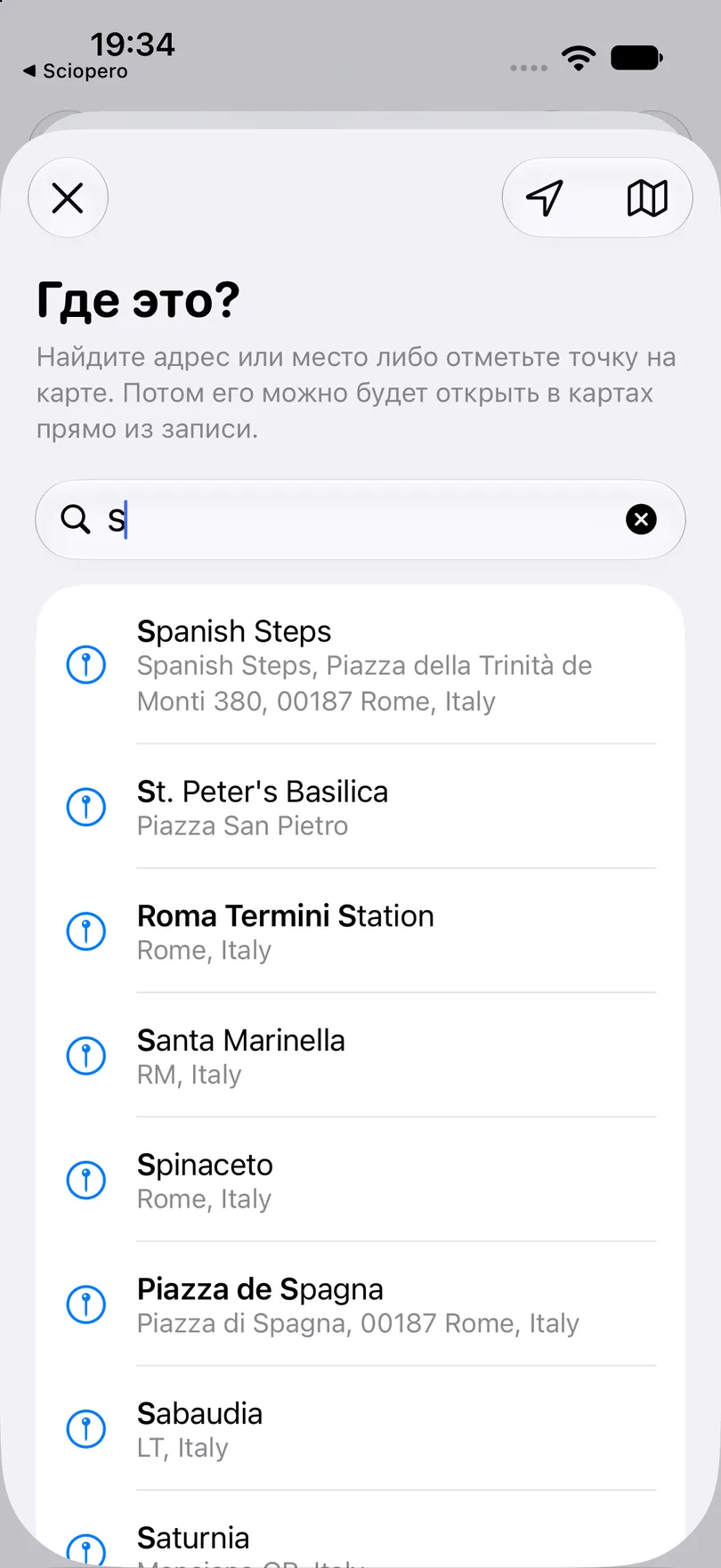
Under the search field, Recent lists up to eight places you’ve used lately, so a regular’s address is a single tap. And Book again on the client’s page copies the place from her last appointment, so you set her address once rather than every visit.
The place belongs to the appointment, not to the client. A client who comes to your studio in winter and books you at home in summer is covered without any juggling.
On the day: the place sits under the name
Open the day and each appointment that has a location shows it in blue under the client’s name, next to a small pin. You can see the shape of the day, and which part of town you’ll be in, before you pick up the keys.
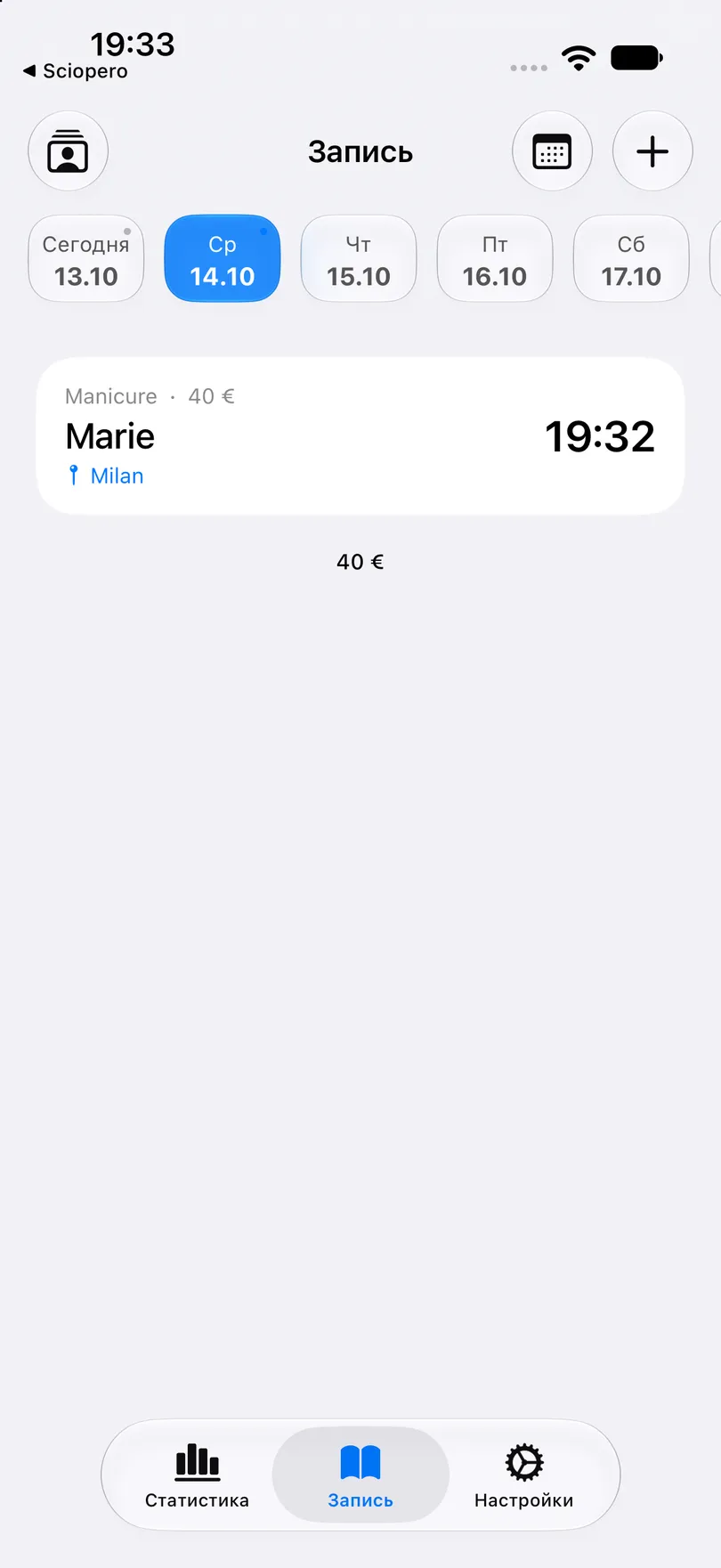
The appointment details screen shows the same place with a small map, and the client’s page shows the most recent place she was booked at.
In the car: one tap to the map
Touch and hold the appointment, tap the place, and choose where to open it:
- Open in Apple Maps.
- Open in Google Maps. It opens the Google Maps app if you have it, or the website if you don’t.
- Open in Waze. Shown only when Waze is installed, and the only one of the three that starts the route straight away.
- Copy Address. It copies the place name and address, for a message or a taxi app.
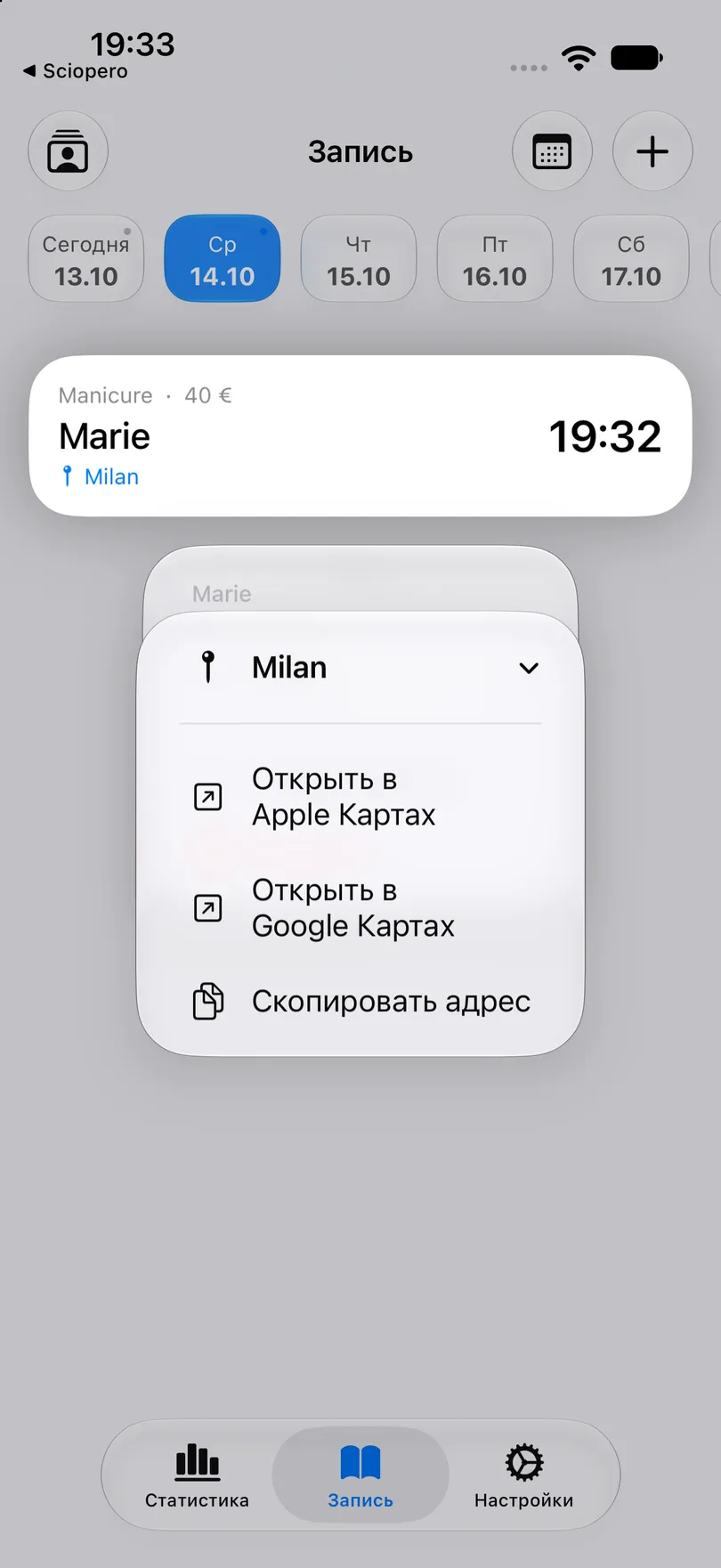
On the appointment details screen, tapping the location card gives you the same choices. Apple Maps and Google Maps open on the place itself; tap Directions there and you’re off.
At the door: what the map doesn’t know
A mobile nail tech on SalonGeek, four years on the road at the time, once listed what to ask a new client beyond the street: the surname on the entry bell, which floor, a phone number, and whether there’s anywhere to park. A pin on a map answers none of those.
The notes field sits right above the location row, so put it there:
- The name on the bell, if it isn’t the client’s own.
- Floor and entrance: “building B, fourth floor, lift on the left”.
- The door or gate code.
- Parking: “visitor spaces behind the shop”, or “nothing on the street, use the garage on Mill Lane”.
- Where you’ll set up, for a massage table or a grooming tub that needs a particular room.
A pin gets you to the right building. The bell name, floor and code in the notes get you inside without phoning the client from the pavement.
Not only for home visits
The location is per appointment, so it covers more than house calls:
- Two places of work. Your own room on Monday to Wednesday and a rented chair across town on Thursday and Friday: set the place on each appointment and the day’s list shows where you’re working.
- Outdoor sessions. A personal trainer meeting a client by the lake or a photographer at a location shoot can use Pick on the Map for a spot no address describes.
- Telling the client where to come. The message template has a Location token that fills in the place and a Google Maps link, so the client can tap straight from your reminder. Editing the template is part of Pro; sending messages is free.
- Your calendar. With Apple Calendar sync (Pro), the calendar event now carries the place as well.
What it costs, and what it doesn’t do yet
- It’s free. Locations are part of the free app on iPhone, from version 1.9.6.
- Search needs a connection. Places already saved on your appointments show without one.
- What leaves the phone. What you type into search goes to Apple, as it would in Apple Maps. Your current location is looked up only when you tap the arrow, and isn’t stored. No place you save reaches us or our analytics. Google sees a location only when you open it in Google Maps, or when a client taps the link in your message.
- It’s in your export. CSV export now has Location, Address, Latitude and Longitude columns.
- Not on widgets or notifications. The widgets and the reminder notification still show the name and time, not the place.
- On Android, version 1.3.8 has a simpler version: search an address, open it in maps or copy it, and save an address as typed when search can’t find it. There’s no map picker or current-location button there yet.
Before a first visit, send this
The first visit to a new address is where the minutes go. One message the day before covers everything the pin can’t:
Hi Marie! Looking forward to Tuesday at 10:00. Could you send me your full address, the name on the doorbell, which floor you’re on, and the door code if there is one? And is there anywhere I can park nearby? Thank you!
Pick the place on the appointment and paste her answers into the notes. When she books again, Book again brings the place with it.
My Clients is free, needs no sign-up and works offline. From version 1.9.6, every appointment can carry its own address, one tap from Apple Maps, Google Maps or Waze.
You may also like
Start organizing your clients today