Add an appointment in seconds
Name, service, price and time — the appointment form is built so a booking takes one screen. Here is every field and what it is for.
Updated Sep 18, 2026
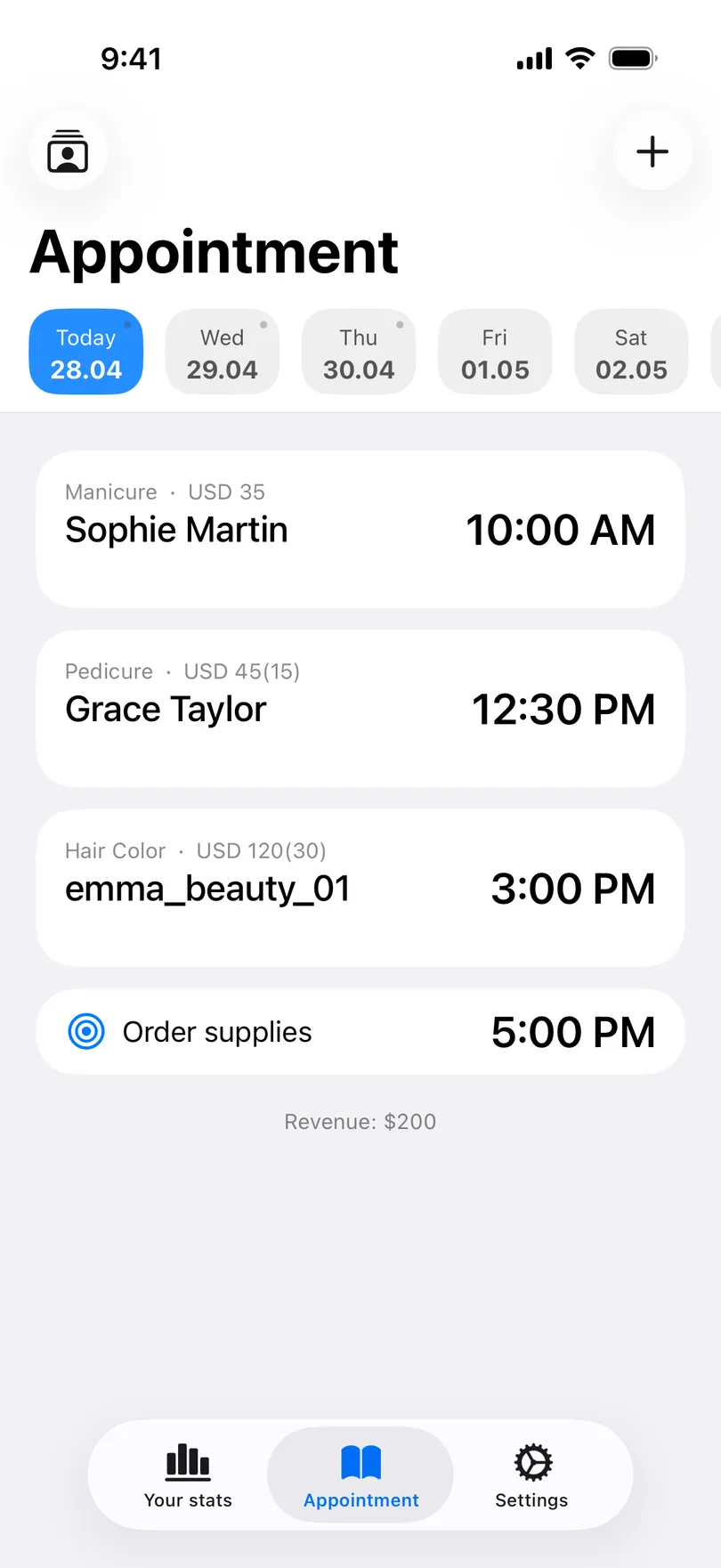
The Appointments tab is where the app opens. The strip of days runs from today forward; the list underneath shows the selected day, and the footer adds up what that day earns.
Steps
- Tap + in the top bar. The form opens with the date already set to the day you were looking at, and the time set one hour after the last appointment of that day.
- Name the client. Type a name, paste an Instagram profile link (the app turns it into the handle — see Add a client by Instagram link), or pick someone you have booked before. On iPhone the form offers Select an existing customer and Add from contacts; on Android the buttons are Recent (your last 30 clients) and Contacts, which brings the name and phone number over from the phone book.
- Add the service. Start typing and the chips above the keyboard offer names you have used before. Saved services from your menu fill in their duration and price for you.
- Set the duration if it matters to you — it decides the end time shown in the list and the length of the calendar event if you sync one. On iPhone the wheel moves in 5-minute steps; on Android a long press on the duration card clears it.
- Enter the money: Price, an optional Prepay if the client paid a deposit, and a Tip if there was one. The deposits and tips page explains how each one is counted.
- Phone and Notes are optional. The phone number is what powers the quick actions later — calling, SMS, WhatsApp. Notes stay with this visit and appear on the client’s page.
- Save. The reminder for you is scheduled at the same moment.
Good to know
- The name is the only required field (the date is filled in for you). If you save with nothing else, that is still a valid appointment — you can come back and add the rest.
- The list does not stop you from booking two people at the same time. Overlaps are simply shown one under the other, so glance at the day before you confirm.
- Two things do not exist, on purpose: clients cannot book themselves through a link, and the app never contacts a client on its own. Every message to a client is one you send — see Send a reminder to a client.
- On iPhone, the switch at the top of the form turns an appointment into a Reminder — a note to yourself with a time, which stays out of your income. See Personal reminders.
Related questions
See also
Didn’t find the answer? Ask support
My Clients 

Start organizing your clients today
Free No account Works offline