Send a reminder to a client
Long-press an upcoming appointment, tap Notify client, choose WhatsApp, SMS, Telegram, Viber or Instagram — the message is ready, you press send.
A reminder the day before is the cheapest fix for no-shows. The app writes it for you; the sending stays in your hands, in the messenger the client actually reads.
Steps
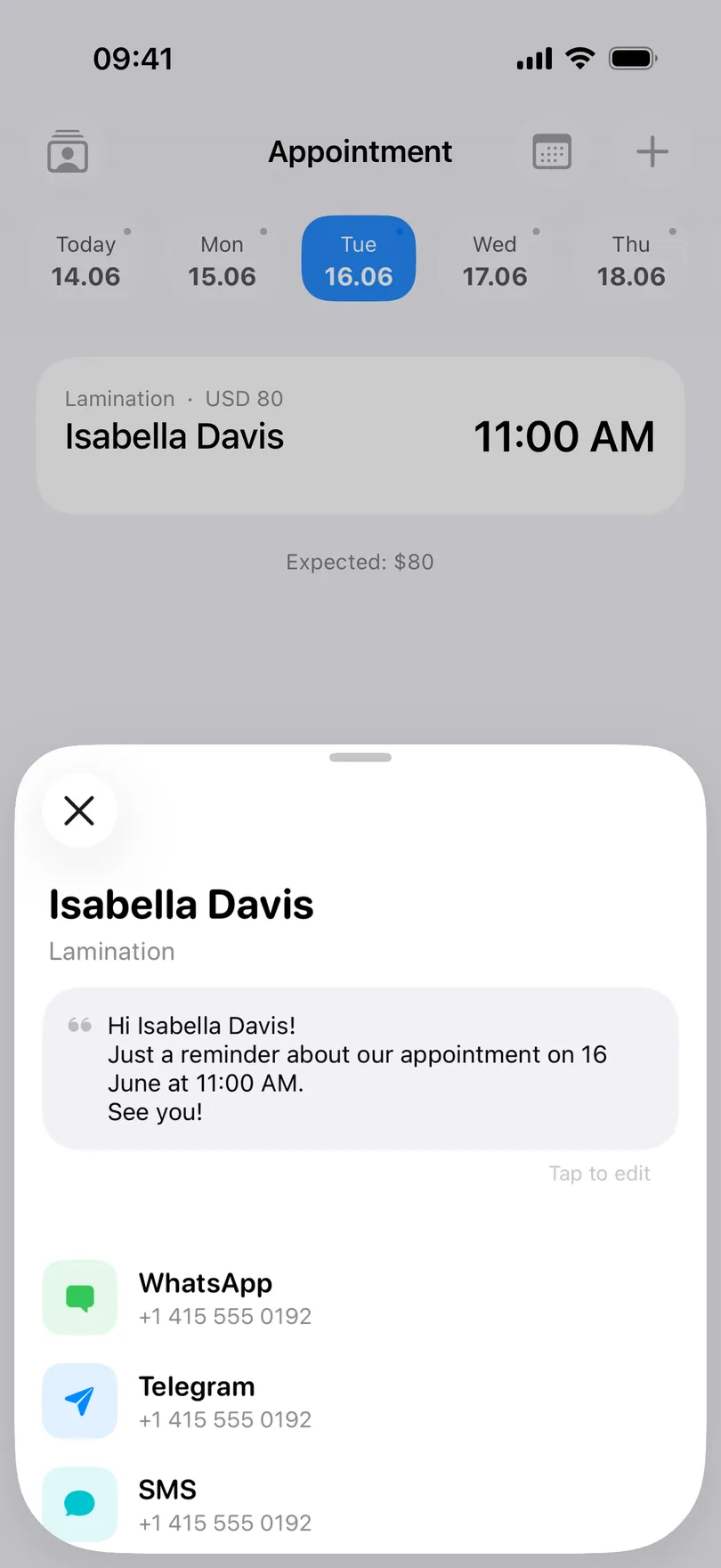
- Touch and hold an upcoming appointment and tap Notify client. (On iPhone you can also swipe the row to the right, or use the button on the appointment’s details screen.)
- Read the message at the top of the sheet — the template with the client’s name, the date and the time filled in. On iPhone, tap it to edit the template.
- Tap a channel:
- WhatsApp and SMS open with the text already in the message box.
- Telegram, Viber and Instagram do not accept a pre-filled text, so the app copies the message and opens the chat — paste and send.
- Copy message puts it on the clipboard for anywhere else.
Which channels appear
The sheet only lists what can work: WhatsApp, Viber and SMS need a phone number on the appointment; Telegram needs a phone number or a t.me link; Instagram needs the client’s profile link (see Add a client by Instagram link). A messenger that is not installed on the phone is not listed. If the phone number has no country code, the sheet warns you — messengers need one.
Good to know
- Nothing is sent automatically, ever. The app has no server and no SMS gateway; it opens the messenger and you press send. That is also why it costs nothing.
- Only upcoming appointments offer the action — there is nothing to remind about after the fact.
- The wording is yours to change with Pro — see Customize the reminder message. The standard message is free to send.
Related questions
See also
Read more on the blog
Didn’t find the answer? Ask support
Start organizing your clients today