Reminders before every appointment
The app notifies you before each visit — 30 minutes to a day ahead, your choice. How to set the lead time and what to do when reminders stop arriving.
Updated Sep 18, 2026
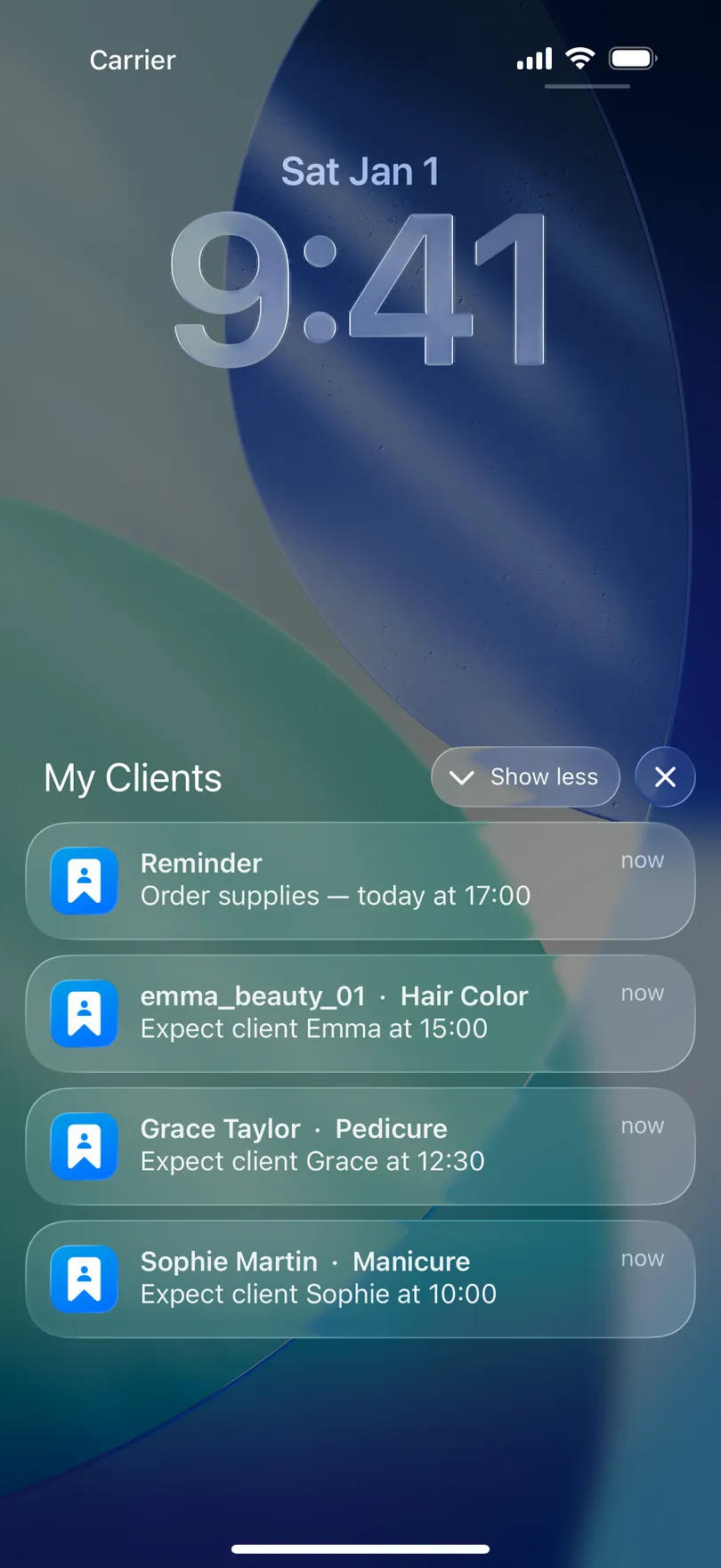
Every appointment you save gets a notification scheduled on the phone — no server, no internet needed. It fires before the visit by the lead time you chose, with the client’s name, the service and the time.
Set the lead time
- Open Settings → Notifications.
- Choose the Notification period (Reminder period on Android): 30 min, 1 hour, 1:30, 2 hours or 24 hours (1 day).
- The new lead time applies to appointments you create from now on; existing ones keep the time they were scheduled with. Re-save an appointment to move its reminder.
On iPhone the screen also has an Enable notifications switch for all reminders at once.
When reminders do not arrive
- iPhone: the app’s notifications must be allowed in iOS Settings → Notifications → My Clients. The app shows a notice on its Notifications screen when they are off.
- Android: open Settings → Notifications in the app — the screen checks three things and lets you fix each with a tap: Notifications allowed, Exact alarms granted, and Battery optimization turned off for the app. Some phones (Samsung’s Device Care, for instance) put apps to sleep; taking My Clients off that list is what brings reminders back.
- Reminders survive a restart — Android reschedules them after the phone boots.
Good to know
- One lead time for everything. There is no per-appointment setting.
- These reminders are for you. The client does not receive anything unless you send it — see Send a reminder to a client.
- The reminder text reads “Meet client Anna at 12:30” — at the 24-hour setting it names the day too.
Related questions
See also
Didn’t find the answer? Ask support
My Clients 

Start organizing your clients today
Free No account Works offline