Home screen and lock screen widgets
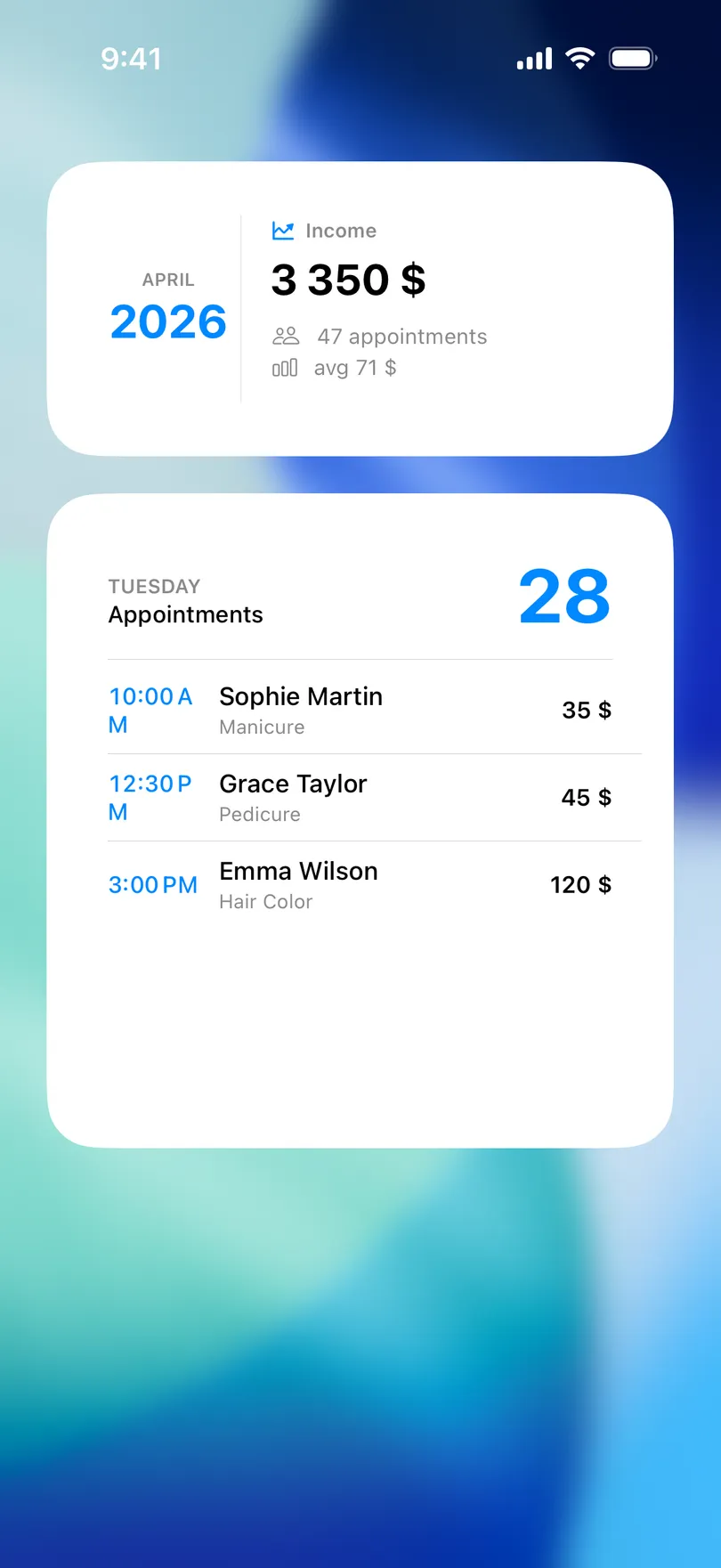
Today's appointments, the next one, and the month's income on the home screen — and on iPhone, the next appointment on the lock screen with a countdown.
Updated Sep 18, 2026
A widget is the schedule without opening the app — a glance on the way to the door.
Add a widget
- iPhone: touch and hold an empty spot on the home screen, tap + (or Edit → Add Widget), search for My Clients, pick a size and add it. For the lock screen: touch and hold the lock screen, Customize, tap the widget area and choose My Clients.
- Android: touch and hold the home screen, tap Widgets, find My Clients and drag one out.
The widgets
iPhone
- Next Appointment (small) — the time, day, client and service of what is next. Free.
- Today’s Appointments (small, medium, large) — the rest of today’s list. Pro.
- Monthly Income (medium) — this month’s revenue, appointment count and average. Pro.
- Lock screen: Next Appointment (rectangular or inline text) and Next Appointment Countdown (the circle) — the next client and a live countdown. Pro.
Android
- Today’s appointments (3×3, resizable) — today’s list with a + button.
- Next (4×2) — the next appointment.
- Month statistics (3×3) — income, appointments, working days, average price.
All three are part of Pro; without it the widget shows a card that opens the paywall.
Good to know
- Tapping a widget opens the app on the matching screen.
- Personal reminders (iPhone) are left out of the widgets — clients only.
- Widgets refresh when you save something in the app, and on their own every half hour.
Related questions
See also
Didn’t find the answer? Ask support
My Clients 

Start organizing your clients today
Free No account Works offline