Long-press an appointment for quick actions
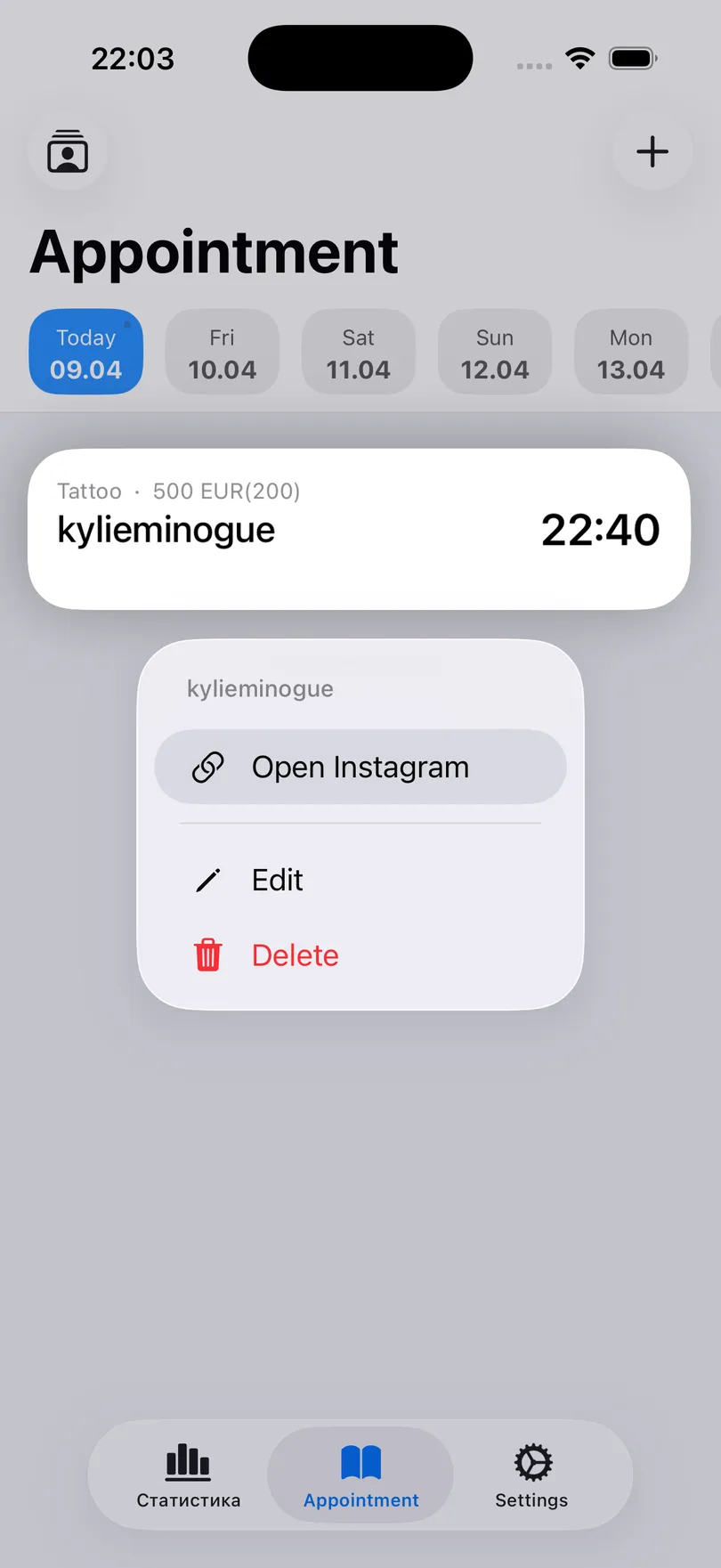
Touch and hold any appointment to remind the client, call them, send an SMS, open their Instagram, edit or delete — without opening the form.
Everything you do around an appointment — reminding, calling, messaging — is one long press away.
Steps
- Touch and hold an appointment in the day’s list (or in the calendar’s day list).
- Pick an action from the menu that appears:
- Notify client — opens the reminder sheet with the message ready to send. Offered only for upcoming appointments with a way to reach the client. See Send a reminder to a client.
- Phone call and SMS — when the appointment has a phone number.
- Open Instagram — when the client was added by their profile link. On iPhone a Telegram link shows Open Telegram, and any other link shows Link.
- Edit and Delete.
On iPhone: swipe as well
The same actions are on the swipes. Swipe right on a row for Notify client and the Instagram or Telegram shortcut; swipe left for Delete. The appointment details screen also has a Notify client button at the bottom.
On Android
The long press opens a sheet from the bottom with the client’s name and time on top, then Open Instagram, Call, Notify client, and below the divider Edit, Duplicate and Delete. Rows that do not apply — no phone number, no Instagram link — are simply not shown.
Good to know
- The first time, the app shows a small tip over the list: touch and hold an appointment to send a reminder. That tip is the whole feature.
- Nothing here is automatic. Notify client opens the messenger with the text filled in; you still press send.
Related questions
See also
Didn’t find the answer? Ask support
Start organizing your clients today