Share your free slots with clients
Free Slots works out the times you can still take from your working hours and bookings, and sends them to clients as a Story picture or a text message.
Free Slots answers “anything free on Friday?” for you. It reads your bookings, takes away what’s already taken, and shows the times you could still offer, day by day. You send them as a picture for Instagram Stories or as a message. Available from iOS 1.9.7 and Android 1.3.9.
Open Free Slots
- The button at the top of the Appointments tab (iPhone: the clock with a tick, on the left; Android: in the top bar).
- Touch and hold a day in the strip and tap Free Slots for This Day: the screen opens with only that day. Not offered for days off or days in the past.
- Settings → Free Slots (on Android: Settings → Appointments → Free Slots).
Set it up once
The first time, a short setup asks for your working days, your hours and how long an appointment takes. If you have enough appointments from the last two months, it suggests hours, a lunch break and a gap between clients from them.
You can change everything later from the two rows at the top of the screen:
- Working Hours — which days you work, opening and closing time, and Break (one per day). Turn on Different hours per day when the days differ.
- Booking — what clients get, Start Times (10:00, 11:00) or Time Ranges (10:00–13:00); the Appointment Length (15 minutes to 4 hours; called Shortest Appointment for ranges); a Break between appointments; and Minimum Notice, so a time that starts too soon isn’t offered.
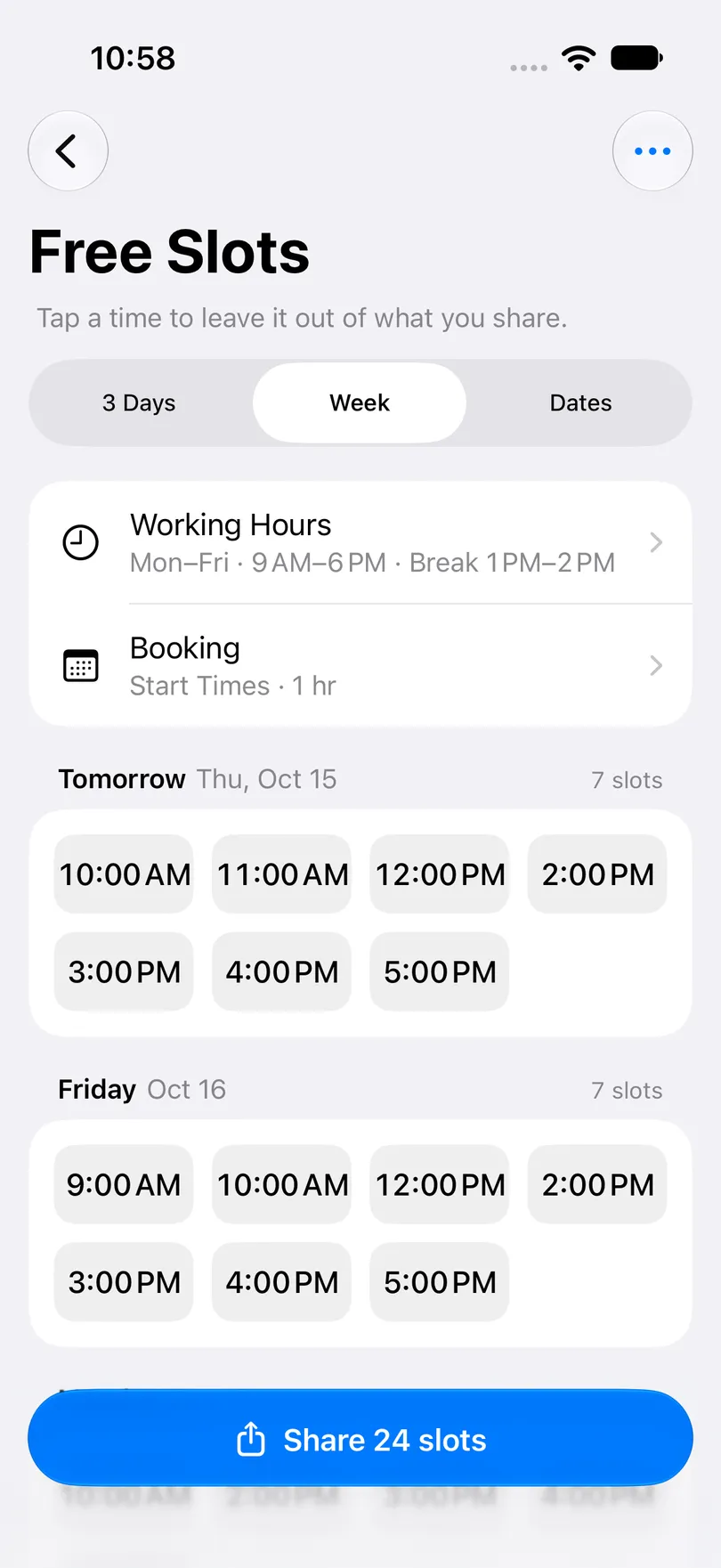
The ⋯ menu has Set Up Again if you want to go through the setup from scratch.
Share the times
- Pick the period at the top: 3 Days, Week, or Dates for your own range of up to a month. 3 Days and Week start today.
- Tap any time you’d rather not offer. It’s struck through and left out of what you send; Show All brings everything back. Hidden times are forgotten when you leave the screen.
- Tap Share at the bottom (it says how many slots go out).
- Choose Picture or Text. For a picture, pick Story or Post size and one of five colours, then Save it to your photos or Share it. For text, Copy it or Share it to a chat.
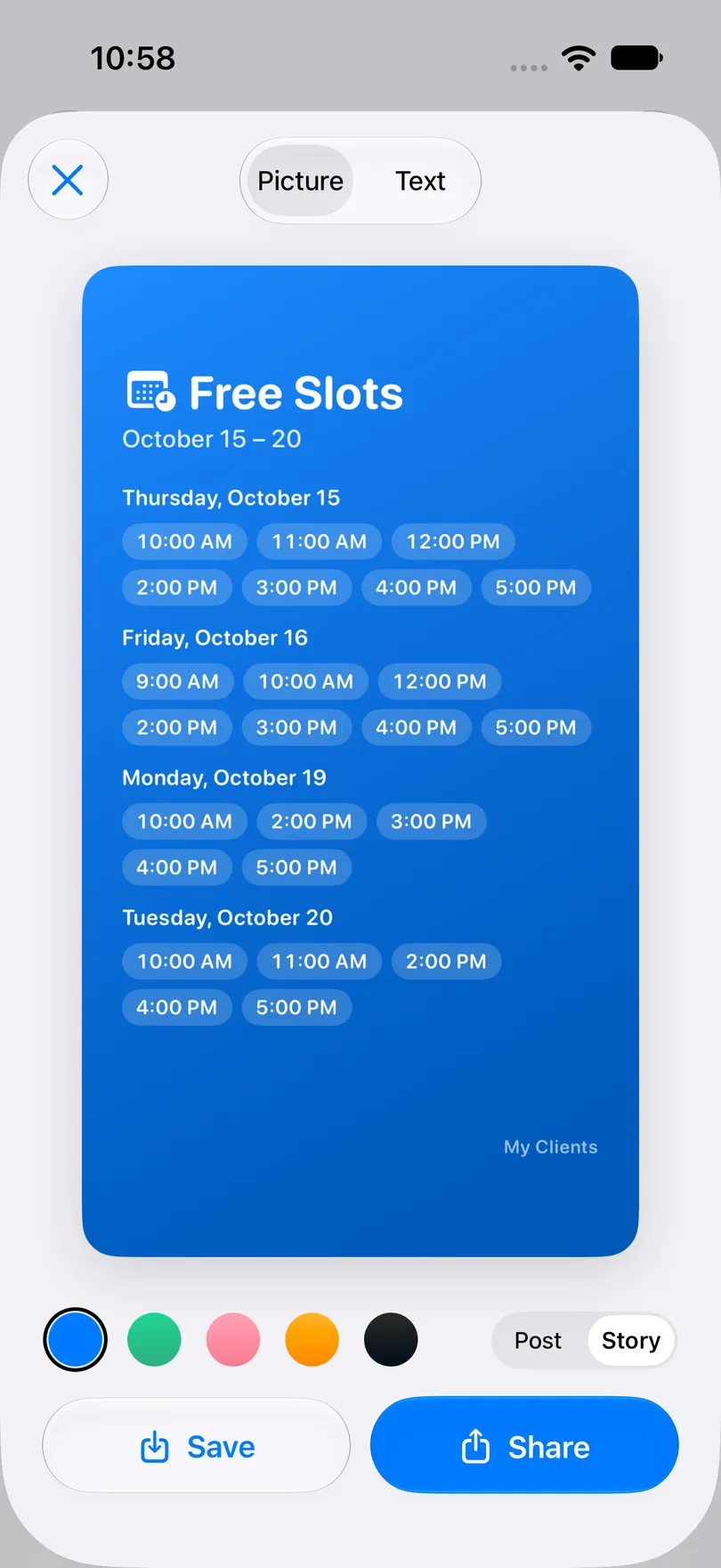
In the text version, tap the first or last line to write it your own way; the app keeps your wording for next time. Four or more back-to-back times are sent as one range.
How the times are worked out
- Every appointment blocks its own duration, plus the Break between on both sides. An appointment saved without a duration counts as one appointment length.
- Personal reminders block time too on iPhone, if they’re in the schedule.
- Days you marked off are skipped, and so are the days you don’t work.
- Today starts from now, plus the minimum notice; times that have passed are never shared.
- A working day with nothing left is shown as Fully booked, so you can see it rather than wonder.
- The times refresh on their own when a booking is added, moved or cancelled.
Good to know
- Free Slots is part of Pro, on both iPhone and Android.
- Clients can’t book from it. They get a picture or a message, not a link, and write back to you; you add the booking yourself. Once a slot is taken, share a fresh picture.
- Only one break per day, and no allowance for travel between clients other than Break between.
- Working hours and booking settings stay on the device. iCloud sync carries your bookings to the iPad, not these settings.
- The picture carries the app’s name at the bottom; the text message doesn’t.
- On Android there are no personal reminders, so only appointments block time.
See also
Read more on the blog
Didn’t find the answer? Ask support
Start organizing your clients today