Mark a day off
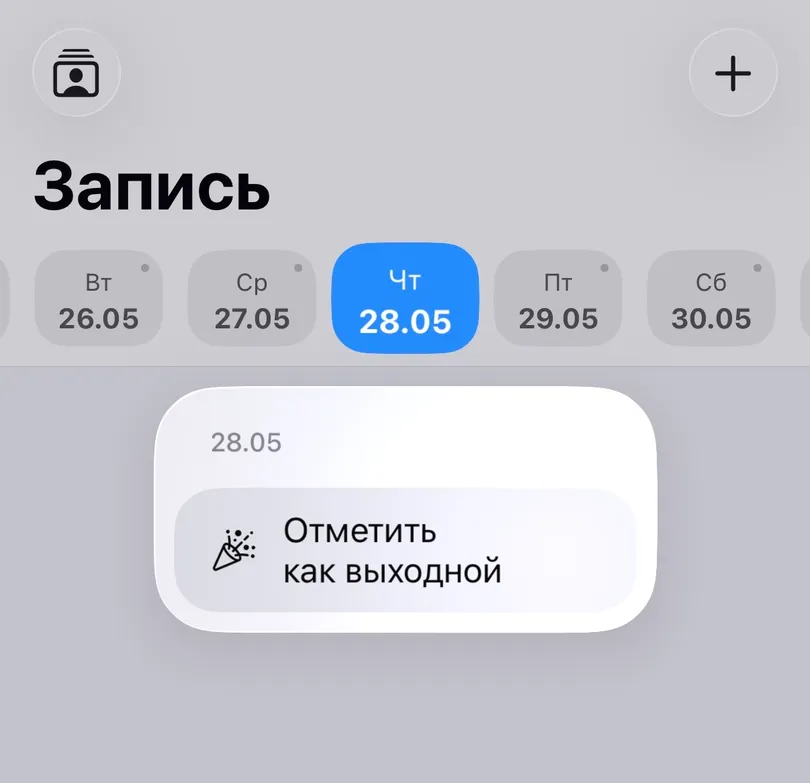
Touch and hold a day in the strip to mark it as a day off, so it stays visibly free in the schedule and in the calendar.
Updated Sep 18, 2026
A day off is a day with nothing on it that you have said is meant to be empty. The strip shows it as Off, the list says Day Off, and the calendar draws a line across the cell.
Steps
- Touch and hold the day in the strip at the top of the Appointments tab.
- Tap Mark as Day Off.
- To undo it, long-press the same day and tap Mark as Workday.
From the calendar view
Open the calendar from the top bar of the Appointments tab, select a day, and use the Mark as Day Off / Mark as Workday button at the bottom. The calendar shows days off as a line across the cell, so a month’s rhythm is visible at a glance.
Good to know
- Only an empty day can be marked off. If the day already has an appointment, the option is not offered — move or delete the appointment first.
- Booking on a day off simply works: the appointment takes over and the day counts as worked again.
- Days off sync with iCloud on iPhone, and are included in a backup, so they survive a new phone.
Related questions
See also
Didn’t find the answer? Ask support
My Clients 

Start organizing your clients today
Free No account Works offline