Income outside appointments
Products sold, a workshop taught, a chair rented out — add income that did not come from an appointment, and see where your revenue really comes from.
Not everything you earn has a client’s name on it. Retail, mentoring, courses, resale of products — the app records those as income entries with a source, and shows how much of the month came from each.
Steps
- On the Statistics tab, tap + and choose Add income (on Android, open the Income card and tap +).
- Enter the Amount, the Source — “Products”, “Mentorship”, whatever you call it — and the Date. On Android there is a Note as well.
- Save. Revenue rises by the amount, and the dashboard notes it as “other income”.
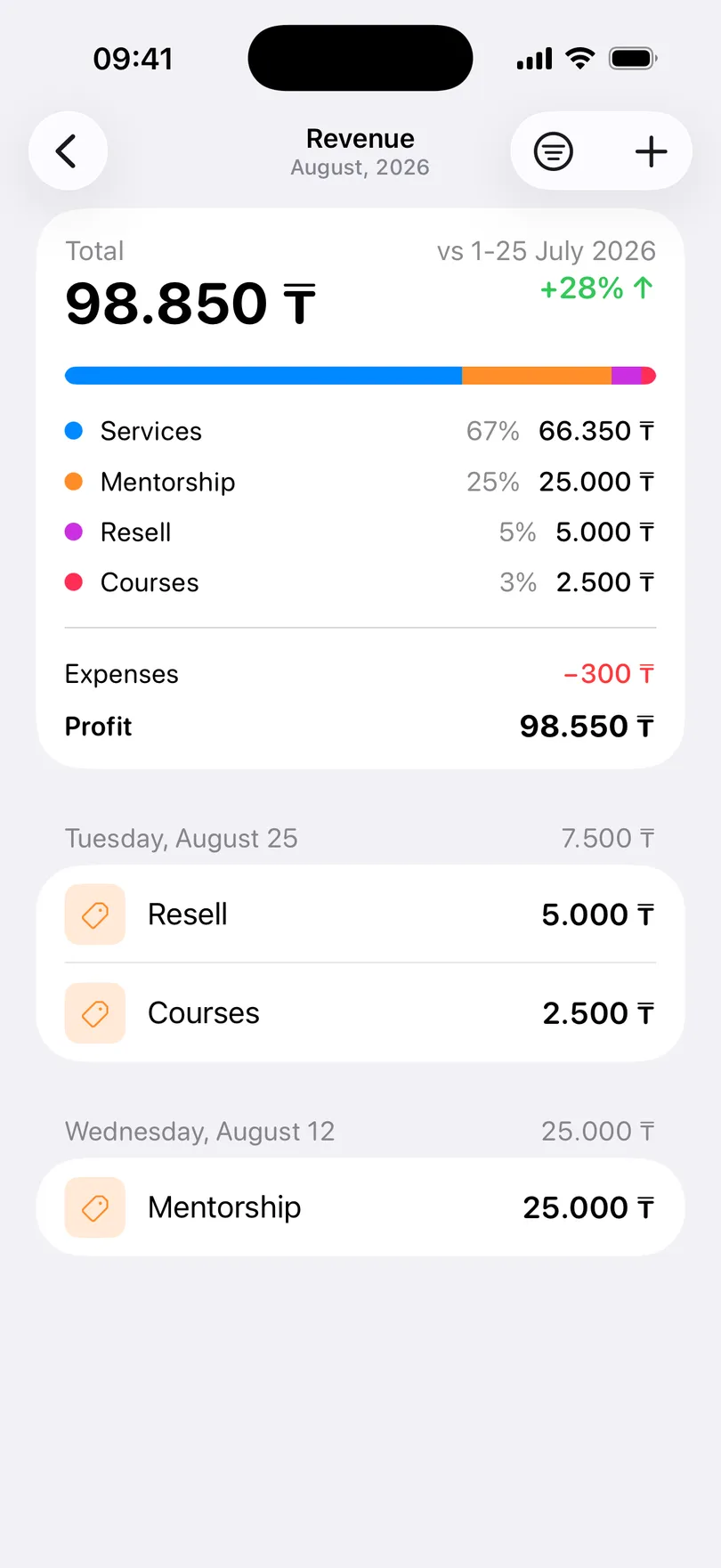
The revenue screen
Tap Revenue (or Profit) on the dashboard. The period’s total is split into Services — your appointments — Tips, and each source you have used, with its share. Below, every entry by date; group them by date or source, sort by date or amount. Appointment income is listed here too but is edited on the appointment; only the entries you added by hand can be edited or swiped away here.
Good to know
- Other income counts in revenue and profit but not in the average price, which stays “per appointment”.
- Reports list other income on its own line.
- This screen is Pro-only on both platforms.
Related questions
See also
Read more on the blog
Didn’t find the answer? Ask support
Start organizing your clients today